




Cropping Questions...
maybee_gw
18 years ago
Sort by:Oldest
Comments (10)
Related Stories
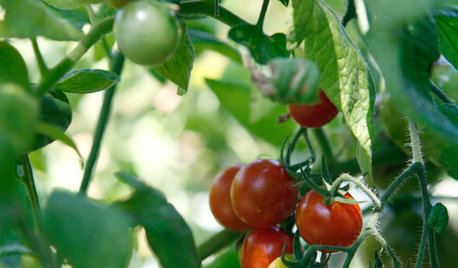
EDIBLE GARDENSSummer Crops: How to Grow Tomatoes
Plant tomato seedlings in spring for one of the best tastes of summer, fresh from your backyard
Full Story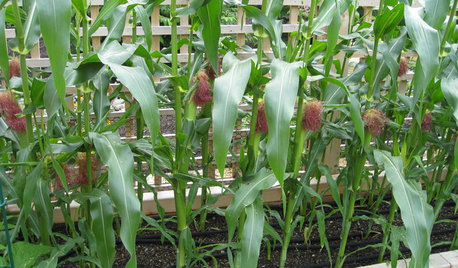
SUMMER FRUITS AND VEGETABLESHow to Grow Your Own Fresh, Sweet Corn
Here's how to plant and care for your own mini cornfield
Full Story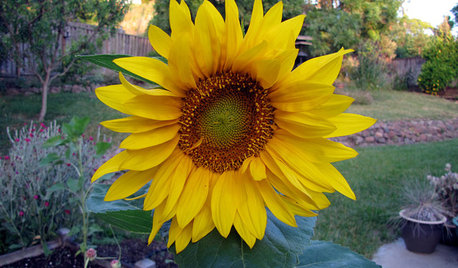
MOST POPULARSummer Crops: How to Grow Sunflowers
Savor snack-tastic sunflower seeds once the radiant blooms have faded — if the birds have saved you any, that is
Full Story
EDIBLE GARDENSHow to Grow Your Own Sweet Summer Crops
This guide will help any gardener get started on growing the freshest warm-season veggies and berries for summer
Full Story
FARM YOUR YARDIf You Have Room for Only One Summer Crop ...
Get an edible that’s long on flavor even if you’re short on space, with a long-time gardener’s favorite picks
Full Story
KITCHEN DESIGN9 Questions to Ask When Planning a Kitchen Pantry
Avoid blunders and get the storage space and layout you need by asking these questions before you begin
Full Story
FARM YOUR YARDCool-Season Vegetables: How to Grow Lettuce
Leaf, butterhead, crisphead or romaine — lettuce is best harvested in the cool weather of spring and fall
Full Story
GARDENING FOR BUTTERFLIES3 Ways Native Plants Make Gardening So Much Better
You probably know about the lower maintenance. But native plants' other benefits go far beyond a little less watering and weeding
Full Story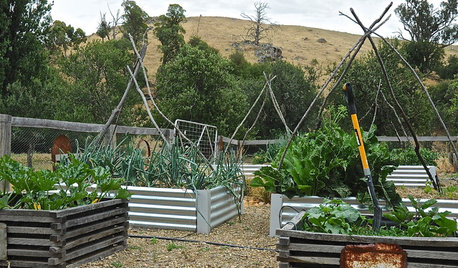
FARM YOUR YARD9 Ways to Change Up Your Vegetable Garden for the Coming Season
Try something new for edible plantings that are more productive than ever
Full Story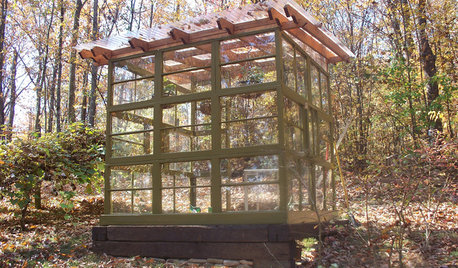
GARDENING AND LANDSCAPINGSee a Family Greenhouse Grown From Scraps
Can-do resourcefulness and less than $400 lead to a new 8- by 8-foot home for plants on a Tennessee family's property
Full Story
Zipper_TX
Zipper_TX
Related Discussions
Clover Cover Crop Question
Q
Abbey - crop question
Q
bean cover crop question??
Q
Apple Crop Questions
Q
amy_z6_swpa
maybee_gwOriginal Author
amy_z6_swpa
jeannej
urlee
maybee_gwOriginal Author
jeannej
jeannej