



help with saving transparent
sugar_fl
17 years ago
Related Stories

GARDENING GUIDES8 Unthirsty Plants Help You Save Water in Style
Spend less effort and money on your landscape with drought-tolerant and native plants that liven up your yard
Full Story
FUN HOUZZDecorated Houses Help Save a Detroit Neighborhood
Art's a start for an inner-city community working to stave off urban blight and kindle a renaissance
Full Story
LIFEYou Said It: ‘You Can Help Save the Bees’ and More Houzz Quotables
Design advice, inspiration and observations that struck a chord this week
Full Story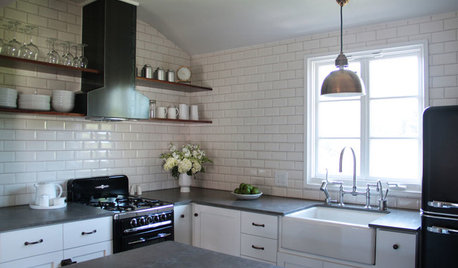
KITCHEN DESIGN10 Big Space-Saving Ideas for Small Kitchens
Feeling burned over a small cooking space? These features and strategies can help prevent kitchen meltdowns
Full Story
SHOP HOUZZShop Houzz: Trending Transparent Furnishings
Give your home a clear perspective with glass and acrylic furniture and accents
Full Story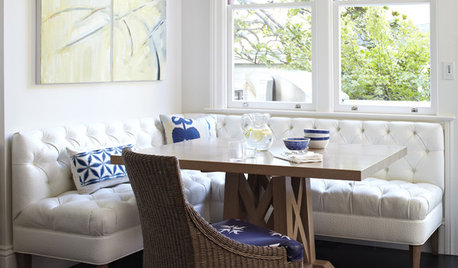
WORKING WITH PROS3 Reasons You Might Want a Designer's Help
See how a designer can turn your decorating and remodeling visions into reality, and how to collaborate best for a positive experience
Full Story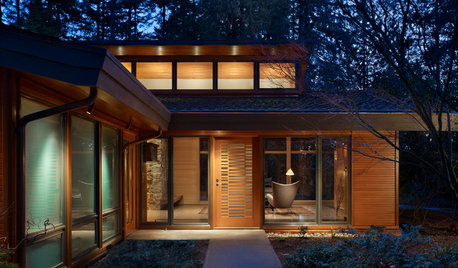
HOUZZ TOURSHouzz Tour: Transparency Guides a Woodland Home
A midcentury gem's renovation brings in the light and the woods while respecting the original architecture
Full Story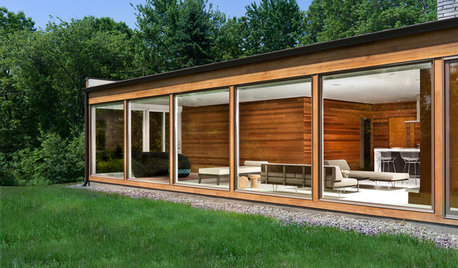
HOUZZ TOURSHouzz Tour: Let's Be Transparent Here
Expansive glass and a new floor plan celebrate a midcentury modern home's openness and connection to nature
Full Story
SELLING YOUR HOUSE10 Low-Cost Tweaks to Help Your Home Sell
Put these inexpensive but invaluable fixes on your to-do list before you put your home on the market
Full StorySponsored
flutteringby
sugar_flOriginal Author
Related Discussions
Urgent HELP Needed / Help Save My Neps
Q
Urgent HELP Needed / Help Save My Neps
Q
We need to save our crude oil...save it for what?
Q
Cacti help-Help Boris and save his life
Q
flutteringby
sugar_flOriginal Author
Joy_CA
jean_mi_z5
floorman67
urlee