




Front Page help PLEASE
mamiejammie
21 years ago
Related Stories
BEFORE AND AFTERSMore Room, Please: 5 Spectacularly Converted Garages
Design — and the desire for more space — turns humble garages into gracious living rooms
Full Story
GARDENING AND LANDSCAPINGNo Fall Guys, Please: Ideas for Lighting Your Outdoor Steps
Safety and beauty go hand in hand when you light landscape stairways and steps with just the right mix
Full Story
DECORATING GUIDESThe Most Helpful Furniture Piece You May Ever Own
Use it as a table, a seat, a display space, a footrest ... and indoors or out. Meet the ever-versatile Chinese garden stool
Full Story
INSIDE HOUZZHouzz and the AIA Partner to Help Residential Architects
Better technology and public outreach are 2 goals of the new strategic partnership, announced at the AIA Convention 2014 in June
Full Story
COFFEE WITH AN ARCHITECT10 Tips to Help You Put Off Procrastinating
Blank page staring at you? Look it in the eye, then vanquish it in 10 only slightly meandering steps
Full Story
KITCHEN DESIGNPaging All Foodies: Your Banquette Is Ready
Please follow us to these 7 gorgeous dining nooks designed for everything from haute cuisine to s'mores
Full Story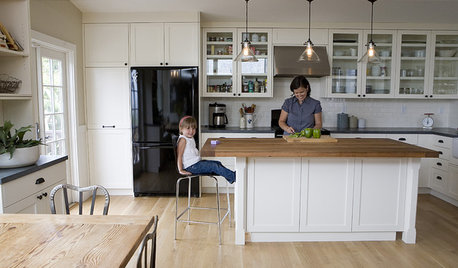
ORGANIZINGDo It for the Kids! A Few Routines Help a Home Run More Smoothly
Not a Naturally Organized person? These tips can help you tackle the onslaught of papers, meals, laundry — and even help you find your keys
Full Story
HOUSEKEEPINGWhen You Need Real Housekeeping Help
Which is scarier, Lifetime's 'Devious Maids' show or that area behind the toilet? If the toilet wins, you'll need these tips
Full Story
LIVING ROOMSA Living Room Miracle With $1,000 and a Little Help From Houzzers
Frustrated with competing focal points, Kimberlee Dray took her dilemma to the people and got her problem solved
Full Story
maryanntx
jacksmum
Related Discussions
Web page HTML help needed please.
Q
FrontPage - adding in a file from another source?
Q
frontPage 2000
Q
Need help creating a photo calendar in front page
Q
jacksmum