




How to use this command
terramadre
21 years ago
Sort by:Oldest
Comments (3)
Related Stories
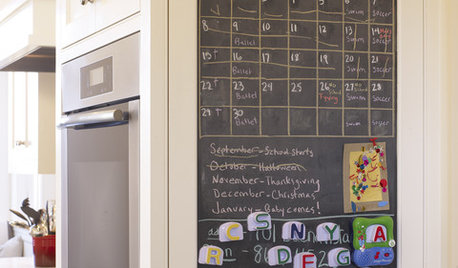
ORGANIZINGCustomize Your Home Command Center
The right tools in the drop zone make it easier to keep track of busy lives. Here are 13 features to consider
Full Story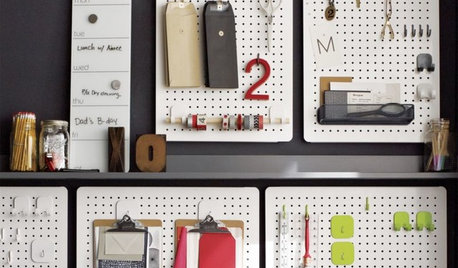
PRODUCT PICKSGuest Picks: Organize Your Family Command Center
Keep track of appointments, schedules and notes with these message boards, organizing systems and accessories
Full Story
HOUZZ TOURSHouzz Tour: A Hillside Home Commands Attention and Views
Striking for its almost alien form, this asymmetrical Arkansas home makes the most of metal panels and sweeping vistas
Full Story
BEDROOMSMaster Bedrooms That Take Command
If your master bedroom is more like a second-class citizen, return it to its proper status with these tips from an interior design pro
Full Story
WINDOWS9 Window Seats That Command Attention
Gather, Lounge, Eat and Sleep in a Dreamy Nook With a View
Full Story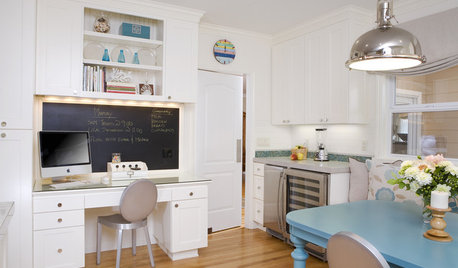
KITCHEN DESIGN9 Ways to Design a Kitchen Desk With Style
Great Details, Color and Light for Your Kitchen Command Center
Full Story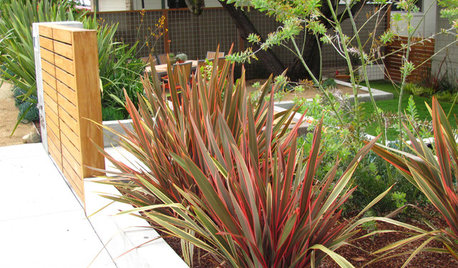
RED FOLIAGEGreat Design Plant: New Zealand Flax
A commanding presence, year-round foliage and a hardy nature make flax a winner in the landscape even in fall and winter
Full Story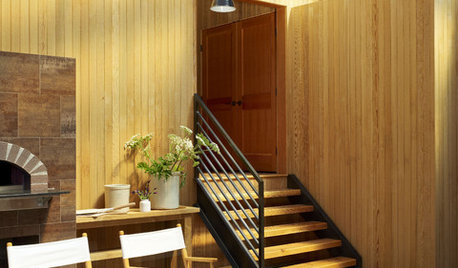
FURNITUREDirector's Chairs Get Starring Role
Director's chairs aren't just for movie sets. See how these stylish, versatile seats can take command of the action in your home
Full Story
SHOP HOUZZShop Houzz: Take a Taste of Watermelon Pink
Give juicy pink a commanding role in your room’s design
Full Story
HOME TECHHere's a Bright Idea: Smart Bulbs for Better Lighting
Lightbulbs that can change brightness and color with a cell phone command show flashes of design brilliance
Full StorySponsored
lazy_gardens
Peggy_GA
Related Discussions
kohler command on scag
Q
Cyclone Rake - Classic vs. Commander
Q
Messed up my computer big-time
Q
What are Command Centers?
Q
terramadreOriginal Author